Complete Device Configuration Guide: Network, Audio and Access Settings
Fixed IP, audio output, player access code, remote commands. Everything you can configure on a RoomStream device — explained once, without SSH, without touching a configuration file.
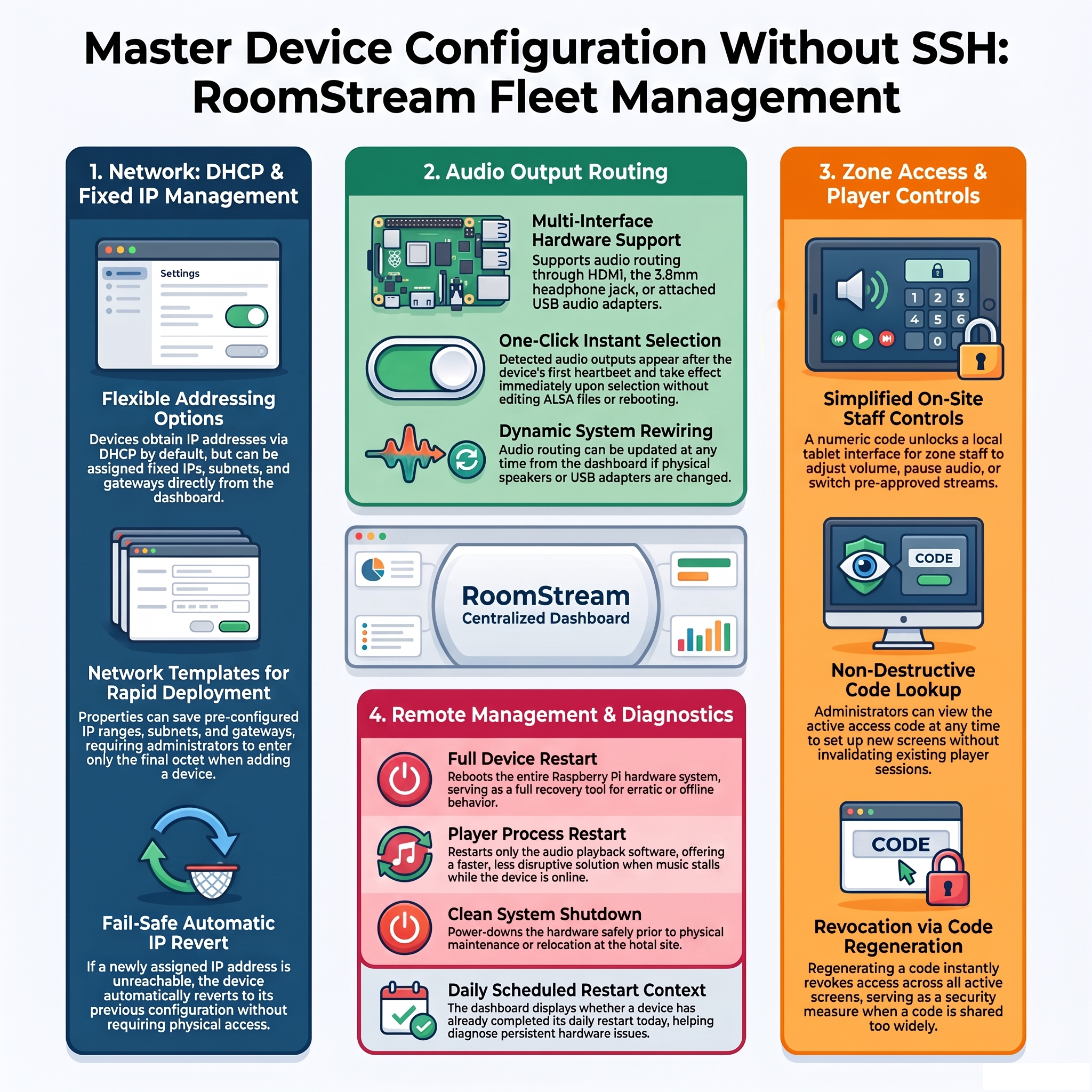
Every Raspberry Pi in the fleet has its own configuration page in the dashboard. This is where everything that matters about that specific device lives: its network settings, its audio output, its access code, and the commands you can send it remotely. This guide covers each of these areas in full, so you have a single reference for any configuration question that comes up in day-to-day management.
1. Network: DHCP or Fixed IP
By default, each device obtains its network address automatically via DHCP. This works fine in most hotel environments. When a hotel needs a device to always have the same IP — for example, to make it easy to identify in the network's device list, or because the hotel's managed switches use IP-based policies — a fixed address can be assigned directly from the dashboard: IP address, subnet mask, and default gateway.
To make this faster across a fleet, each hotel can have its own network template saved: the usual IP range, subnet mask, and gateway for that property. When adding a new device in a hotel that has a template, only the last octet of the IP needs to be entered — the rest is pre-filled. Across a fleet of 200 devices spread over 50 hotels, this eliminates a significant amount of repetitive manual entry.
This change is reversible by design: if the IP address provided turns out to be unreachable, the device reverts to its previous configuration automatically, without physical access. The dashboard shows both the attempted change and the automatic revert, so you know exactly what happened and can correct the address and try again.
2. Audio Output
A Raspberry Pi can output audio via HDMI, the 3.5mm jack, or a USB audio adapter. On first boot, the device tries HDMI by default. If the hotel's speakers are connected via jack or USB, the output needs to be set explicitly.
Once the device has sent its first heartbeat, the dashboard shows all the audio outputs it detected. Selecting the correct one is a single click — no SSH, no raspi-config, no editing of ALSA configuration files. The change takes effect immediately on the device without a restart.
If the selected output changes later (because the hotel rewires its audio system, or because a USB audio adapter is added), this can be updated from the same screen at any time.
3. Player Access Code
Each device can have a numeric access code that gives access to its player screen — a simplified control view that shows the current stream, allows pausing and volume adjustment, and lets the user choose between streams the administrator has enabled for that zone. This is designed to be left open on a tablet or screen in the zone itself, so the staff in that area can adjust audio without needing an administrator account.
The code can be viewed at any time without regenerating it — so if you need to set up a second screen with the same code, you simply look it up and enter it again. Regenerating the code is a deliberate action: it immediately invalidates the old code on every screen that was using it. This is the right move when you want to revoke access — for example, if the code has been shared too widely — but not when you just need to set up an additional control point.
This distinction matters in practice. A code regenerated by mistake means every player screen in that zone stops working and needs to be reconfigured. The system is designed so that viewing the current code and generating a new one are clearly different actions.
4. Remote Commands
Three commands are available for any device, directly from its configuration page:
- Restart the device — a full reboot of the Raspberry Pi. This is the most thorough recovery action and is appropriate when the device has been offline for an unexplained reason or is behaving erratically.
- Restart the player — restarts only the audio playback process, without rebooting the full device. This is the right choice when music has stalled but the device is otherwise online and healthy. It is faster than a full reboot and causes less disruption.
- Shut down the device — a clean shutdown. Useful before physical maintenance at the device's location.
The dashboard also indicates whether the device has already completed its scheduled daily restart today. This context is useful for diagnosis: if a device is showing symptoms that a restart would normally fix, and it has not yet had its daily restart, that is likely the resolution. If it restarted an hour ago and is still showing the same problem, a restart is not the answer.
Everything in One Place
None of these four configuration areas requires SSH access, terminal knowledge, or any technical skill beyond knowing what you want to achieve. The same administrator who manages streams and zones can also change a network address or regenerate a player code, from the same page, without any additional access level.
The goal is that managing a hundred devices should not be a hundred times more complicated than managing one. The device page consolidates everything relevant to that device in a single, consistent interface — so that when something needs to change, the answer to "where do I do that?" is always the same.
Full device control without SSH or config files
RoomStream's device configuration is designed for IT teams of any size, at any technical level.
Learn more about RoomStream →